Omni Search Bar: A User Guide
What is the Omni Search Bar?
The Omni Search Bar is the search field at the top of the Site Admin dashboard. It lets you search across several record types at once instead of navigating to each index individually, which makes it a fast way to jump straight to a specific record when you already know a name, address, or email.
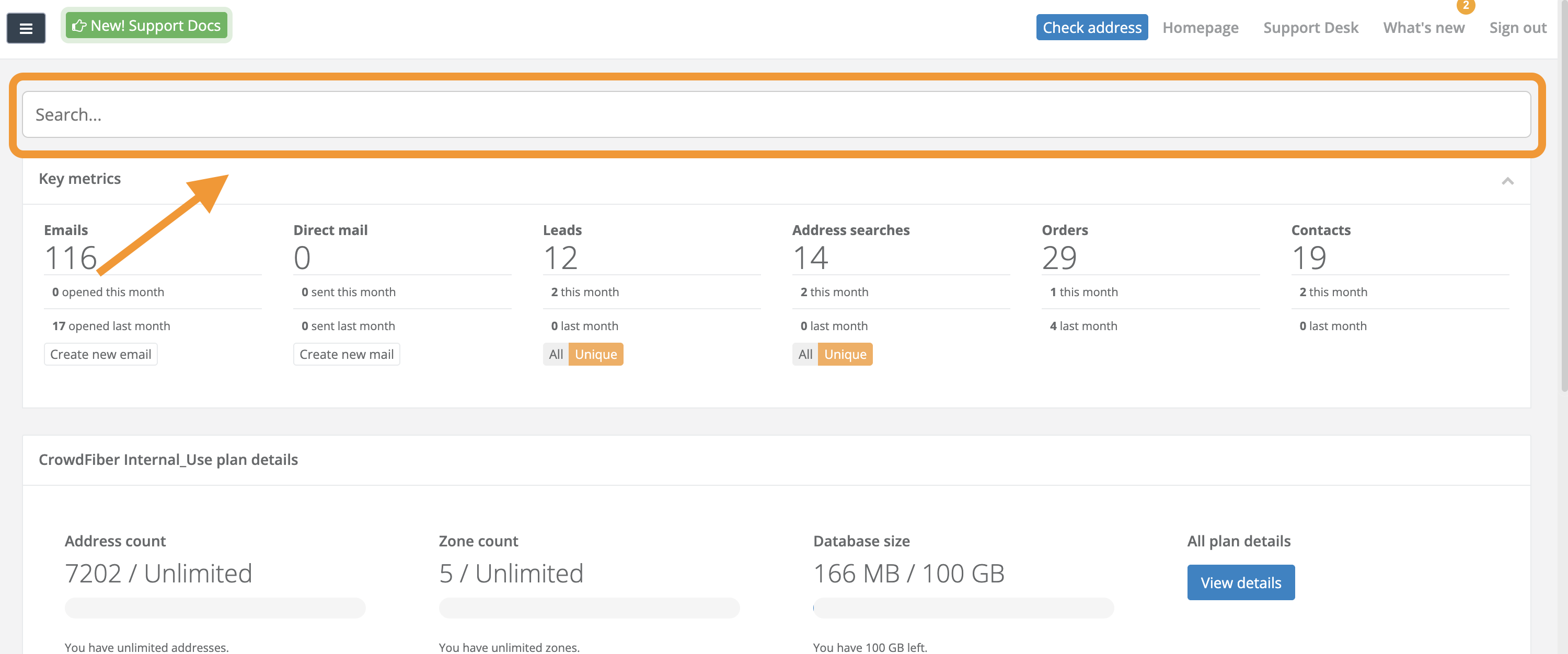
What Can I Search For?
A single query checks the following record types at the same time:
- Leads
- Contacts
- Addresses
- Users
- Customers
What each record type searches
- Leads - the associated contact's first and last name, and their address
- Contacts - the contact's name
- Addresses - the full street address, including number, street name, city, state, and zip
- Users - the internal/admin user's first and last name
- Customers - the customer's name and their service address
How to Use It
- Go to the Site Admin dashboard.
- Click into the search field at the top of the page and start typing.
- Results appear automatically in a dropdown as you type - there's no need to press Enter.
Search tips
- Type at least 2 characters to start seeing results.
- Matching is prefix-based, so typing part of a word (e.g. "uniq") will match longer words that start with it (e.g. "Uniquestreet").
- If you type more than one word (e.g. a first and last name), every word must match for a result to appear.
- The search is not case-sensitive.
Reading the Results
Results are grouped under a heading for each record type. Each result shows whatever is available for that record, which may include:
- The record's name or title
- 📧 an email address
- 🏠 an address
- 🕒 the date the record was created
Click any result to go directly to that record's page.
Within each group, up to 10 results are shown, with the most recently created records listed first. If nothing matches your search, the dropdown will display "No results found."