CrowdControl
CrowdControl has replaced the Map page
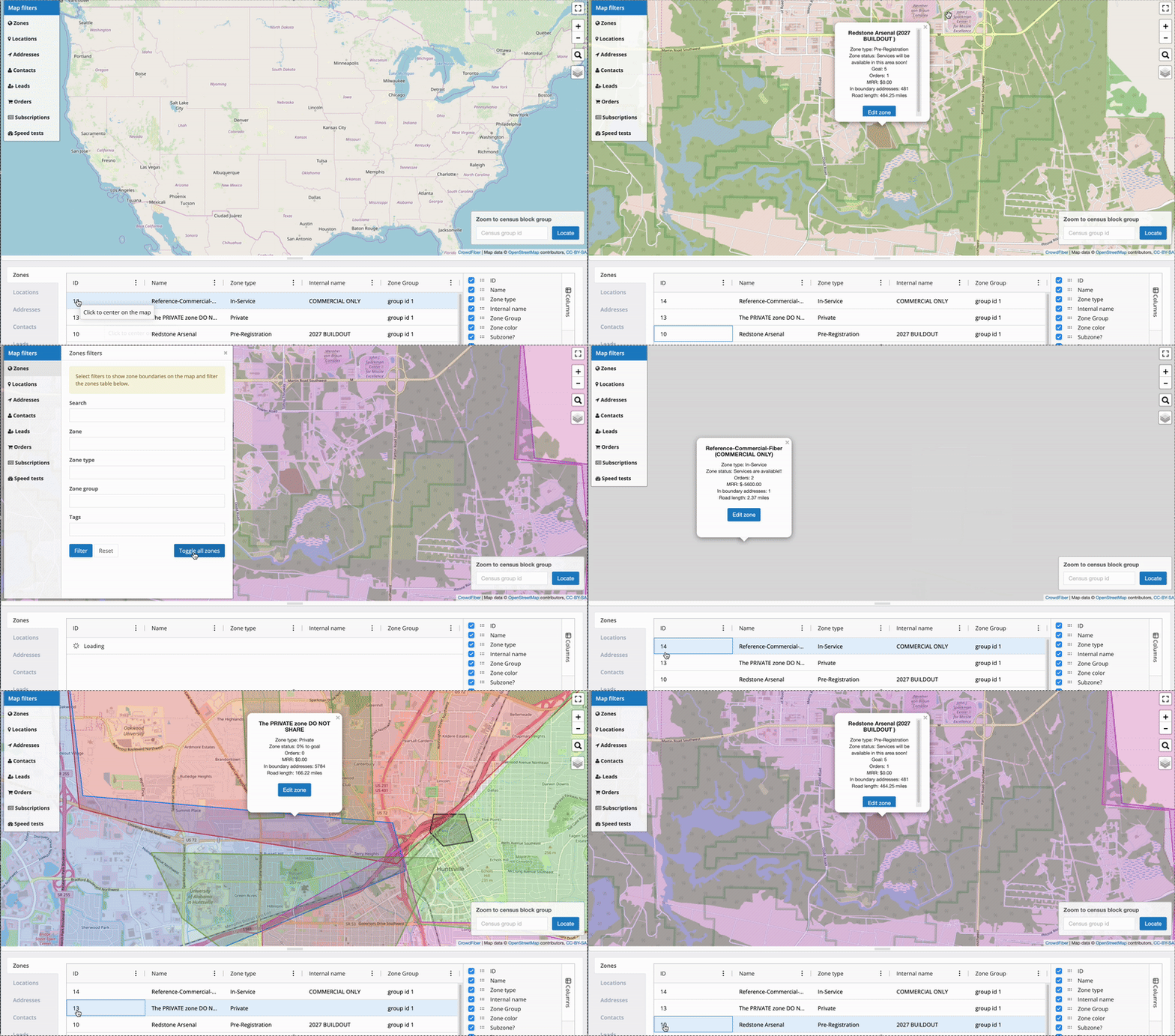
CrowdControl is the new home for the map that used to live on its own Map page in your Admin Dashboard. If you're looking for the internal admin map you've used in the past, you'll now find it here, alongside the data table described below.
What is CrowdControl?
CrowdControl pairs an interactive map with an editable data table so you can visualize and manage the following record types in one place:
- Zones
- Locations
- Addresses
- Contacts
- Leads
- Orders
- Subscriptions
Use the map filters to narrow down exactly what you want to see, then use the table to review or edit that data directly - no need to open individual records one at a time. CrowdControl is designed to streamline these workflows and help keep your data accurate.
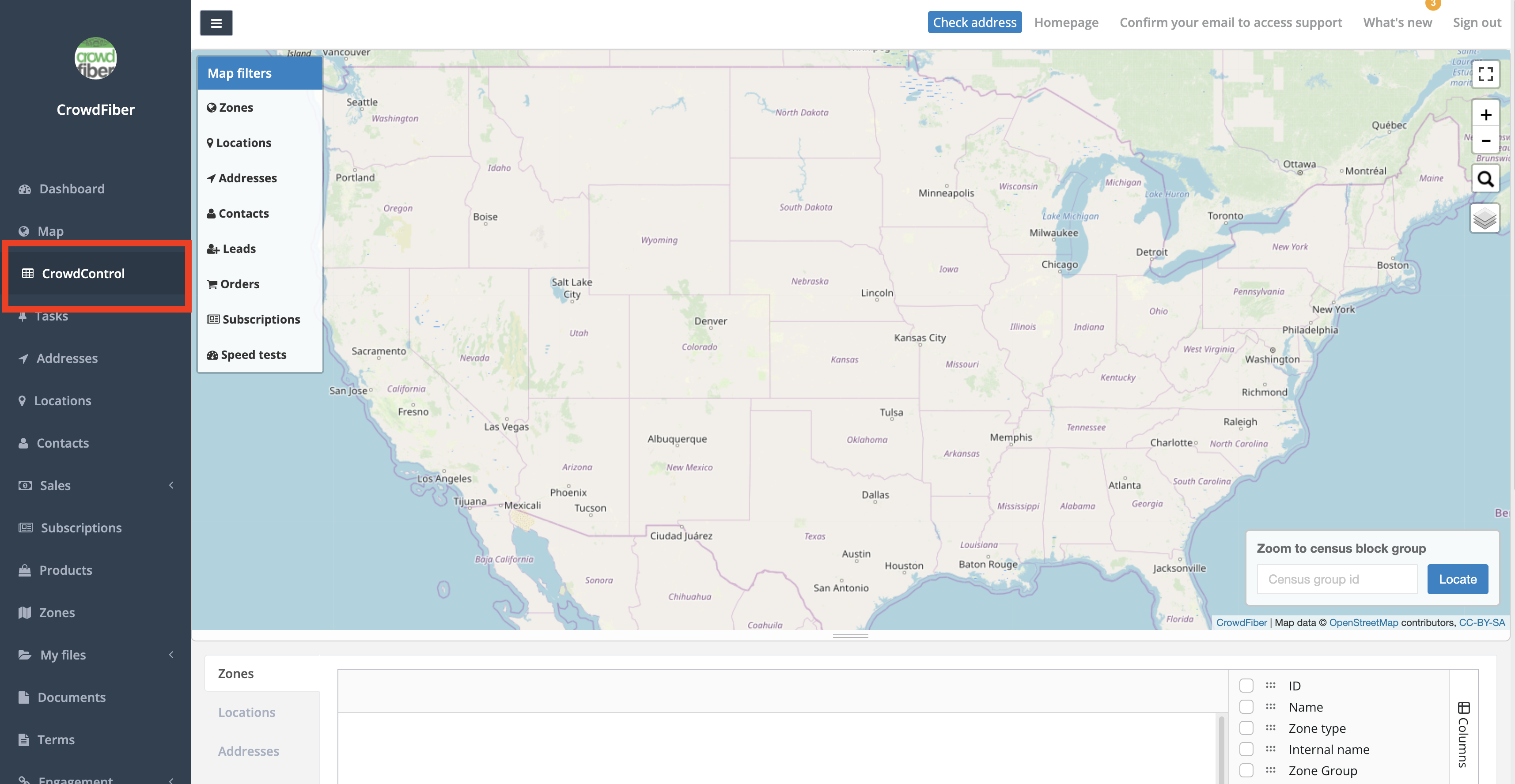
Map Filters
The map filters, located on the left-hand side of the map, let you narrow the map (and the table below it) down to a specific set of records. Select an index - Zones, Locations, Addresses, Contacts, Leads, Orders, Subscriptions, or Speed Tests - to see the filters available for that record type.
Applying filters
You can apply filters to multiple indexes at the same time.
After selecting the filters you want for an index, you must click:
 - before moving on to filter another index.
Two more controls are available next to each index's filters:
 - clears all filters currently applied to that index.
 - shows every record in that index. Click it again to turn this view off.
Zones
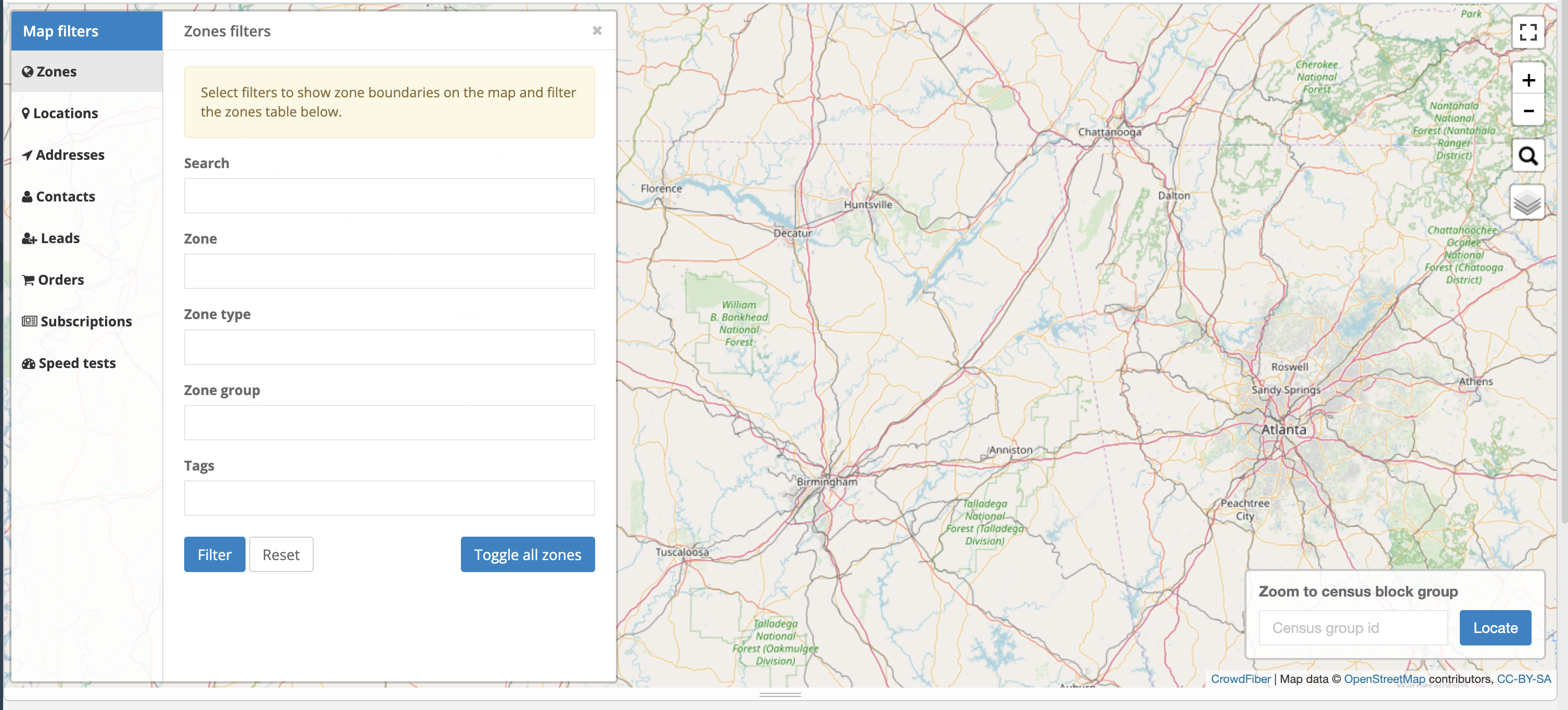
- Search
- A global search for any word, phrase, letter, or other text found within a zone's Name or Internal Name fields.
- Zones
- A drop-down selector and search field for choosing specific zones. Includes all zone types, subzones, and even retired zones. Multiple zones can be selected.
- Zone Type
- Filters between Remote, In-Service, Pre-Registration, Reference, and Private zones. Multiple zone types can be selected. See Zone Types for more information.
- Zone Group
- Filters by one or more zone groups. See Zone Groups for more information.
- Tags
- Filters by existing tags in your zone index, as well as Highway tags found under a zone's business case settings. See OpenStreetMap's Highway tag documentation for more information.
Locations
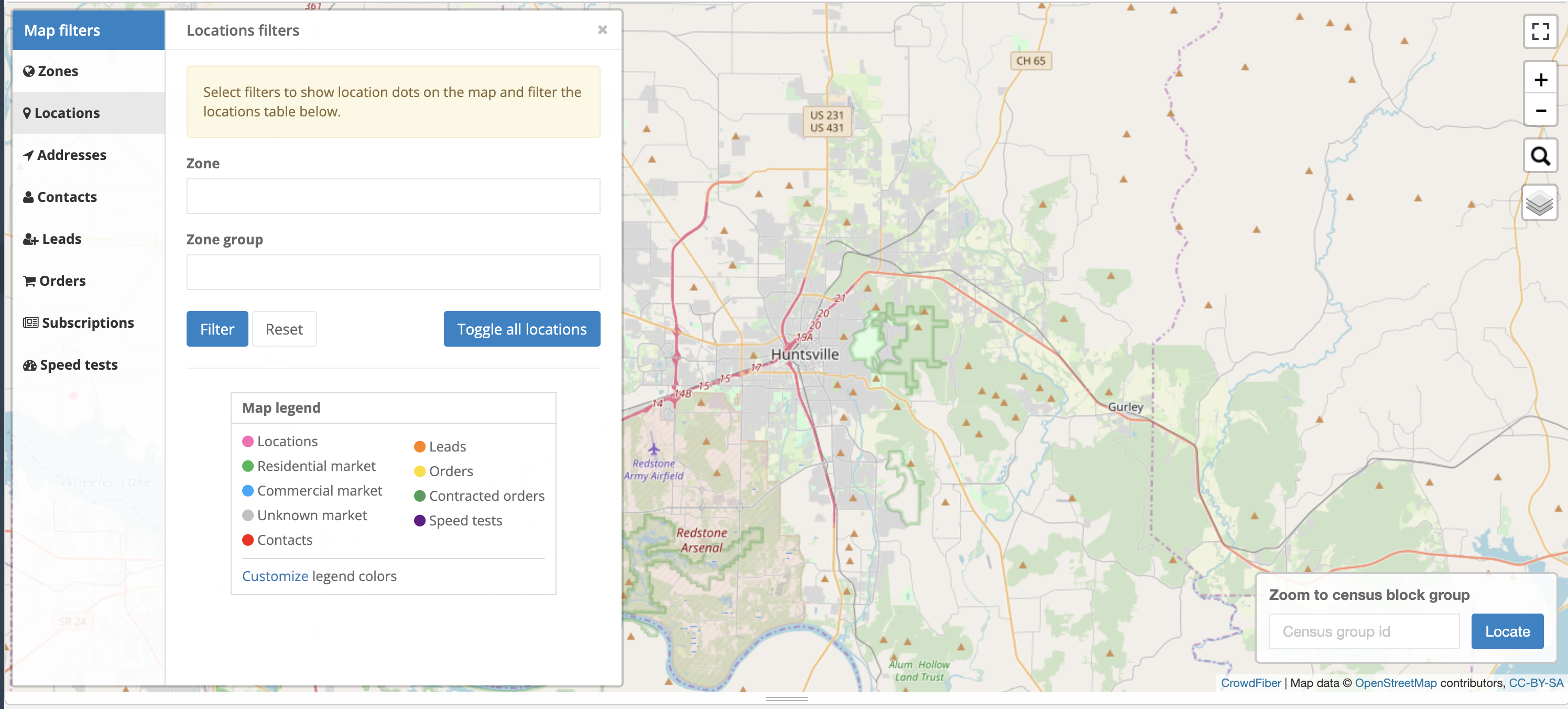
- Zone
- Filters locations by the zone(s) they resolve to.
- Zone Group
- Filters locations by one or more zone groups they resolve to.
Addresses
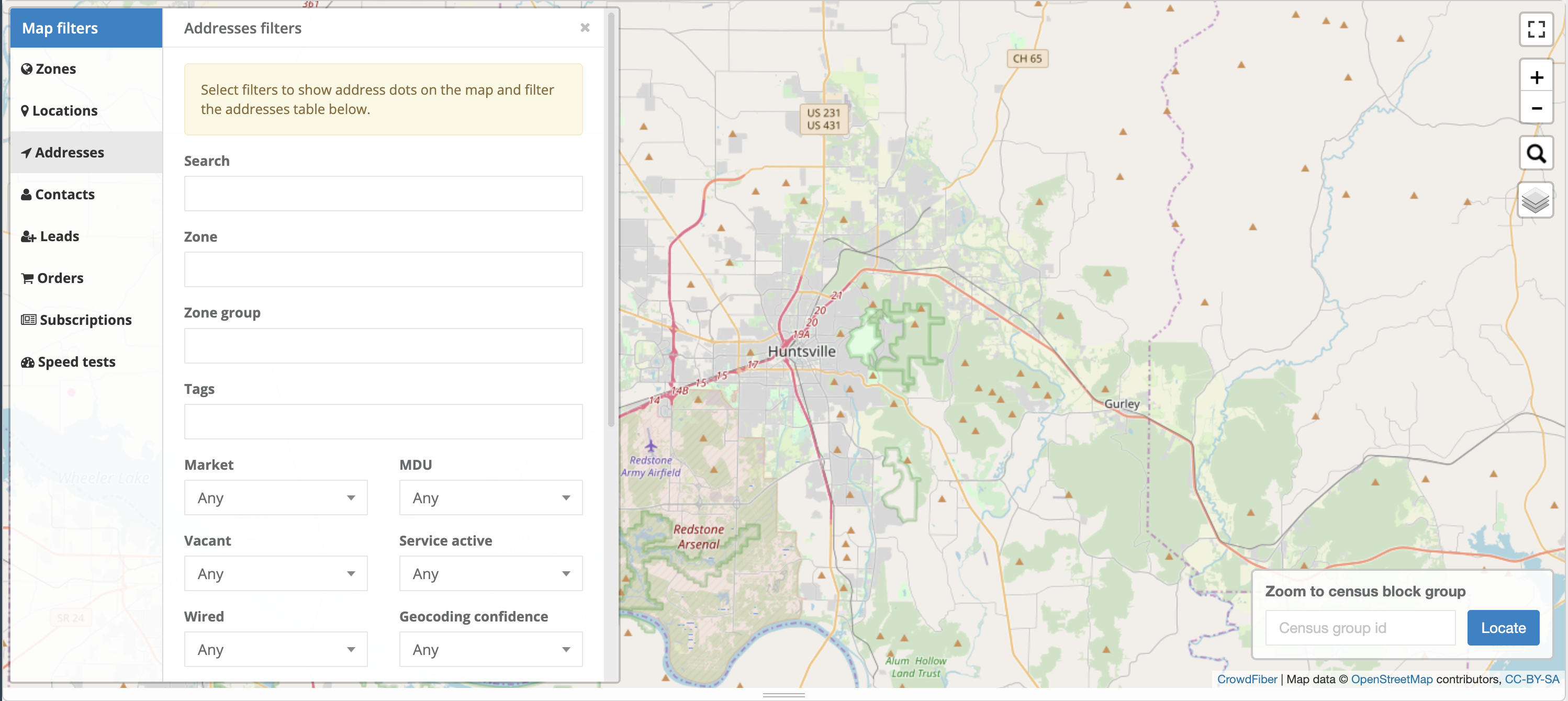
- Search
- A global search for any numerals, words, phrases, letters, or other text found within an address's street name.
- Zone
- Filters addresses by the zone(s) they resolve to.
- Zone Group
- Filters addresses by one or more zone groups they resolve to.
- Tags
- Filters by existing tags in your address index.
- Market
- Filters using the residential delivery indicator obtained from USPS data.
- MDU
-
Uses Delivery Point Validation (DPV) footnotes from USPS data to identify whether an address is a Multi-Dwelling Unit (MDU).
You may notice the footnote code "AAN1" on addresses shown when 'MDU - Yes' is applied. This means the primary address (street, city, zip code, and primary number) is valid, but secondary information such as an apartment or suite number is missing and needs to be added for complete address verification.
- Vacant
- Filters using the 'address vacant' field obtained from USPS.
- Service Active
- Filters addresses by the 'service active' network field on the address record.
- Wired
- Filters addresses by the 'wired' network field on the address record.
- Geocoding Confidence
- Filters addresses by their level of geocoding confidence.
- Source
- Filters addresses by how they were introduced to CrowdFiber (Any, Fetched, Imported, or Searched).
Contacts
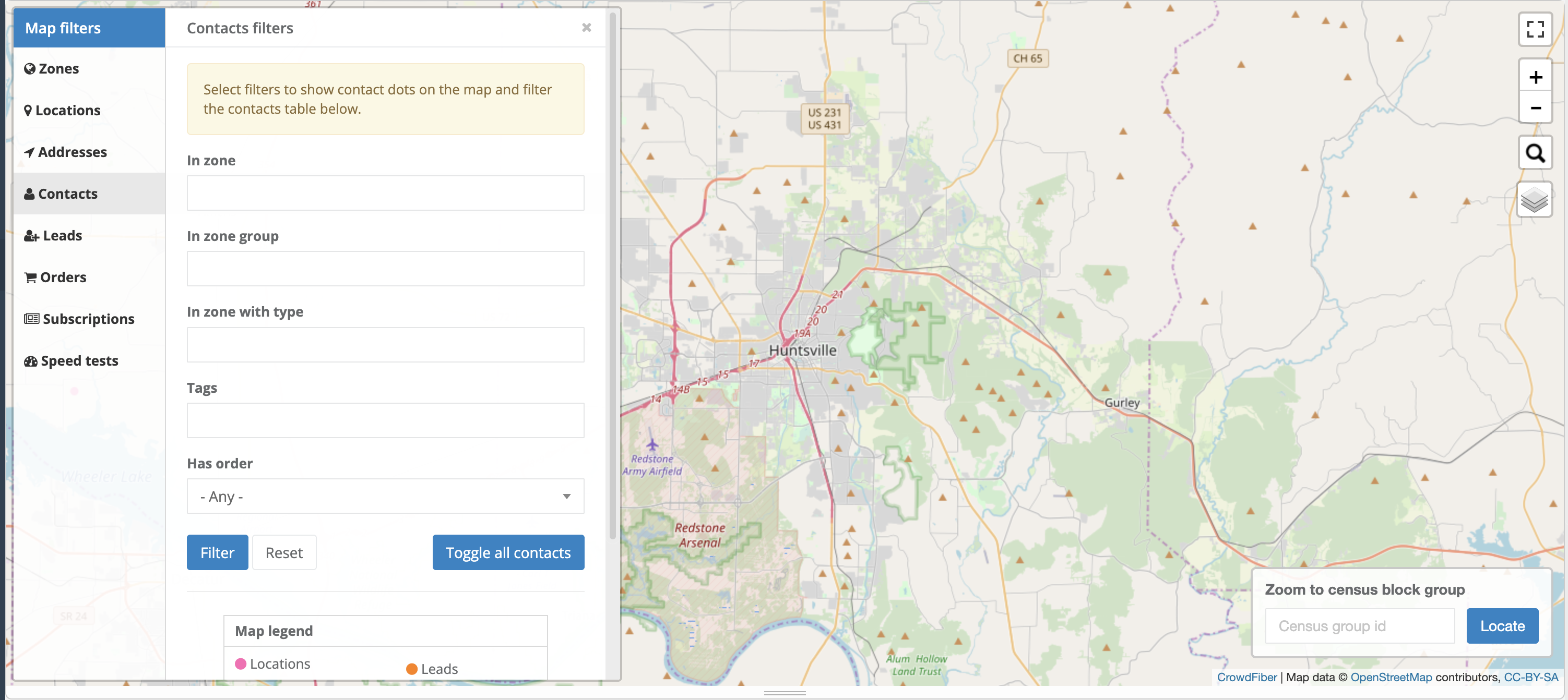
- In Zone
- Filters contacts by the zone(s) their associated address falls within.
- In Zone Group
- Filters contacts by one or more zone group(s) their associated address falls within.
- In Zone with Type
- Filters contacts by the zone type their associated address falls within.
- Tags
- Filters by existing tags in your contact index.
- Has Order
- Filters contacts by whether they have an existing order in CrowdFiber.
Leads
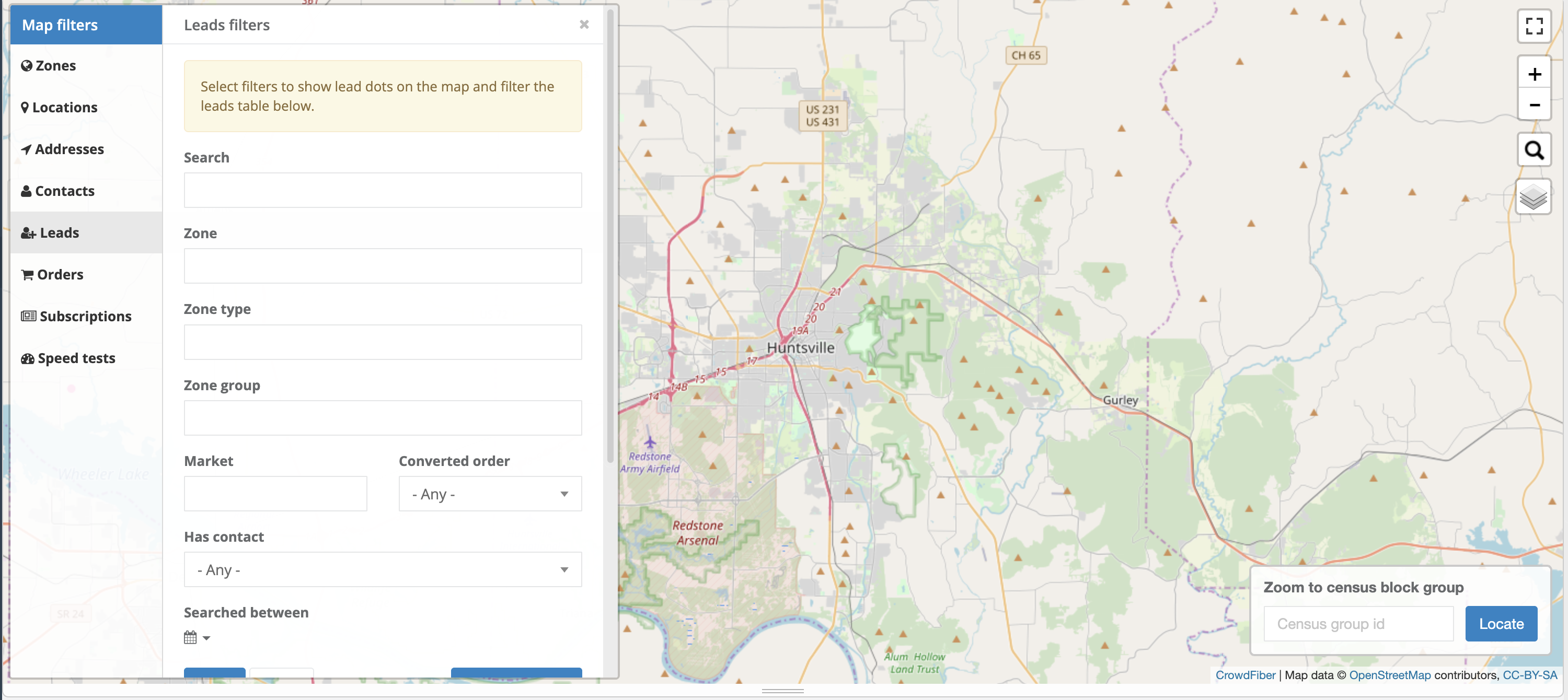
- Search
- A global search for any numerals, words, phrases, letters, or other text captured during registration.
- Zone
- Filters leads by the zone(s) they resolved to.
- Zone Type
- Filters between Remote, In-Service, Pre-Registration, Reference, and Private. Multiple zone types can be selected.
- Zone Group
- Filters leads by one or more zone group(s) their associated address falls within.
- Market
- Filters using the residential delivery indicator obtained from USPS data.
- Converted Order
- Filters leads based on whether they have converted to an order.
- Has Contact
- Filters to leads that have an associated contact record.
- Searched Between
- Filters leads by a date range.
Orders
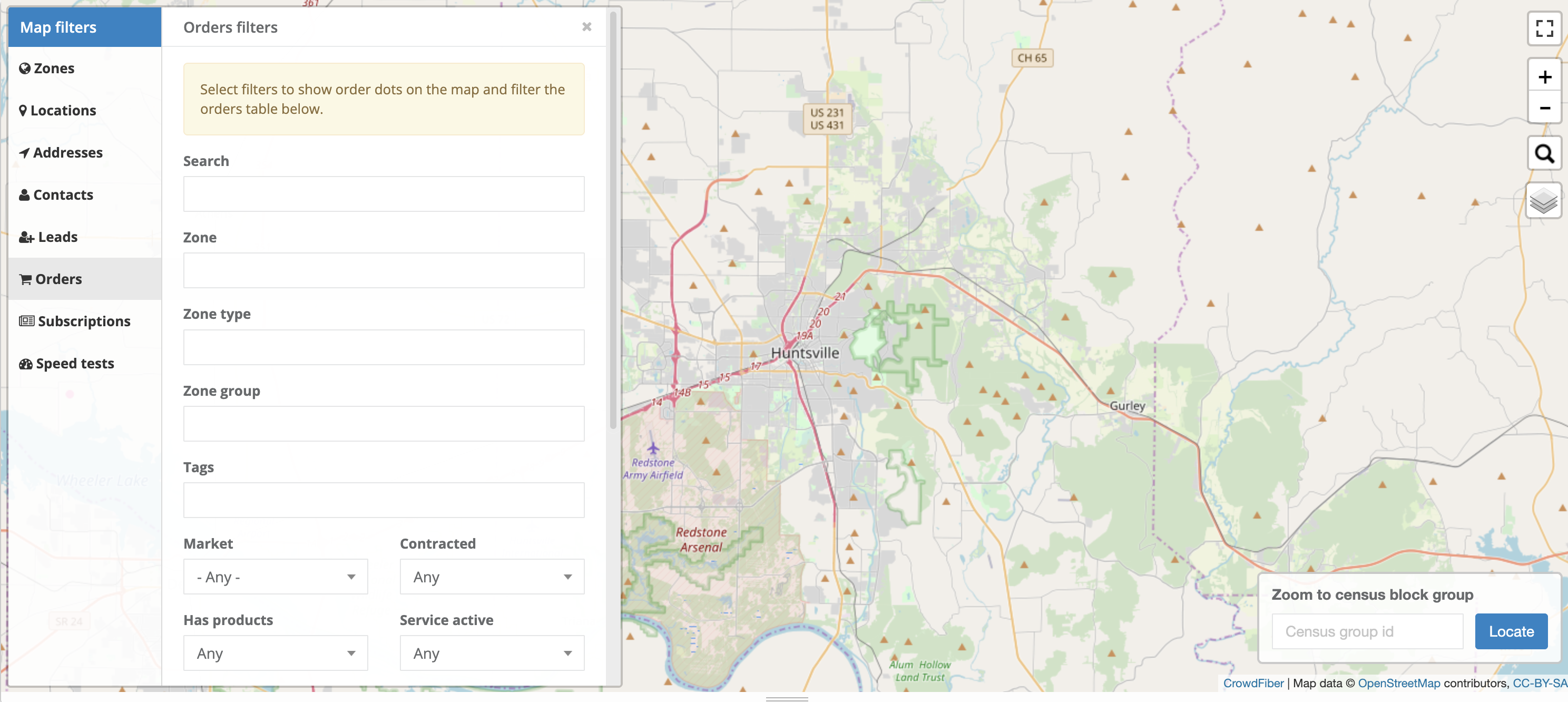
- Search
- A global search for any numerals, words, phrases, letters, or other text captured on the order.
- Zone
- Filters orders by the zone(s) they resolve to.
- Zone Type
- Filters between Remote, In-Service, Pre-Registration, Reference, and Private. Multiple zone types can be selected.
- Zone Group
- Filters orders by one or more zone group(s) their associated address falls within.
- Tags
- Filters by existing tags in your order index.
- Market
- Filters using the residential delivery indicator obtained from USPS data.
- Contracted
- Filters orders by their contracted status.
- Has Products
- Filters orders by whether they have products associated with them.
- Service Active
- Filters orders by their active status.
Subscriptions
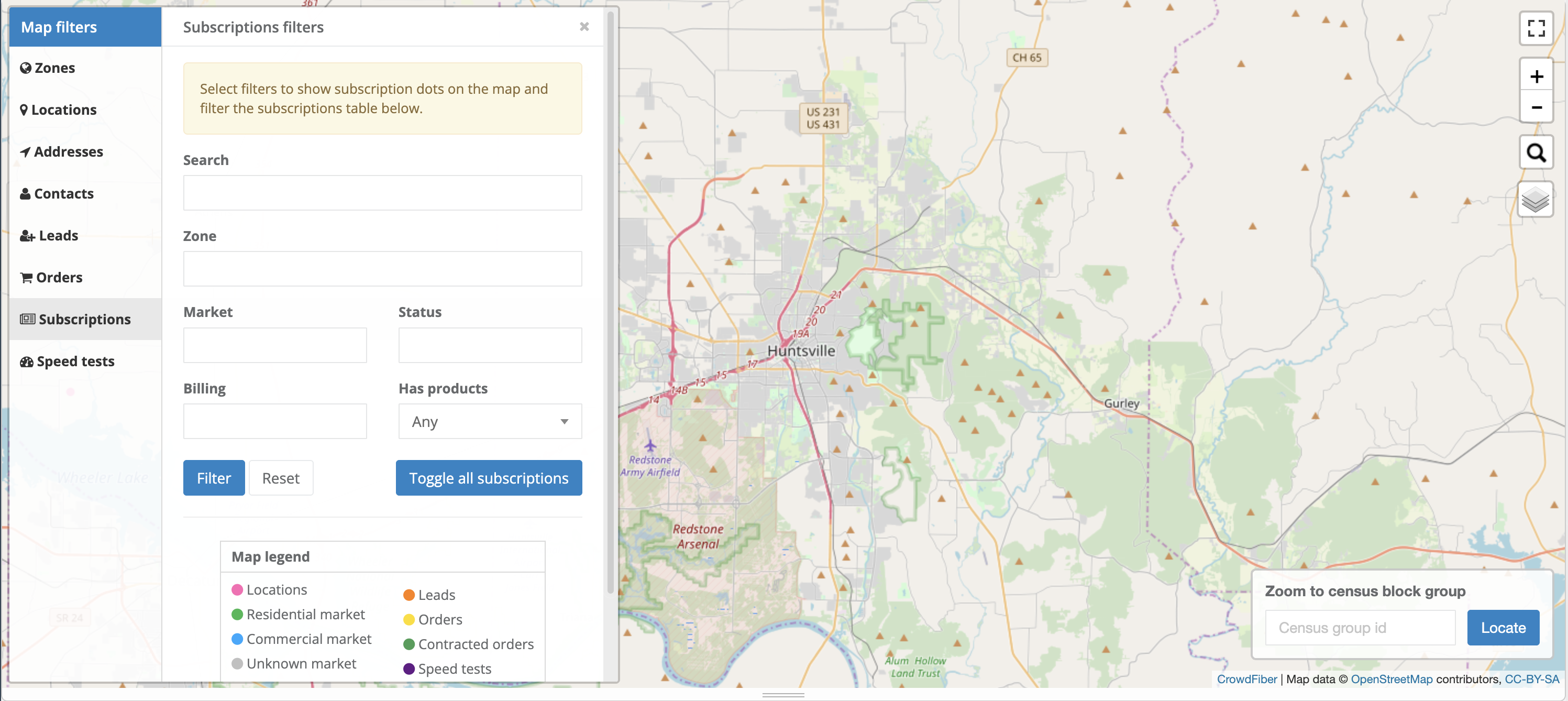
- Search
- A global search for any numerals, words, phrases, letters, or other text found within subscription records.
- Zone
- Filters subscriptions by the zone(s) they resolve to.
- Market
- Filters using the residential delivery indicator obtained from USPS data.
- Status
- Filters by the subscription's status.
- Billing
- Filters by billing frequency.
- Has Products
- Filters subscriptions by whether they have products associated with them.
Speed Tests
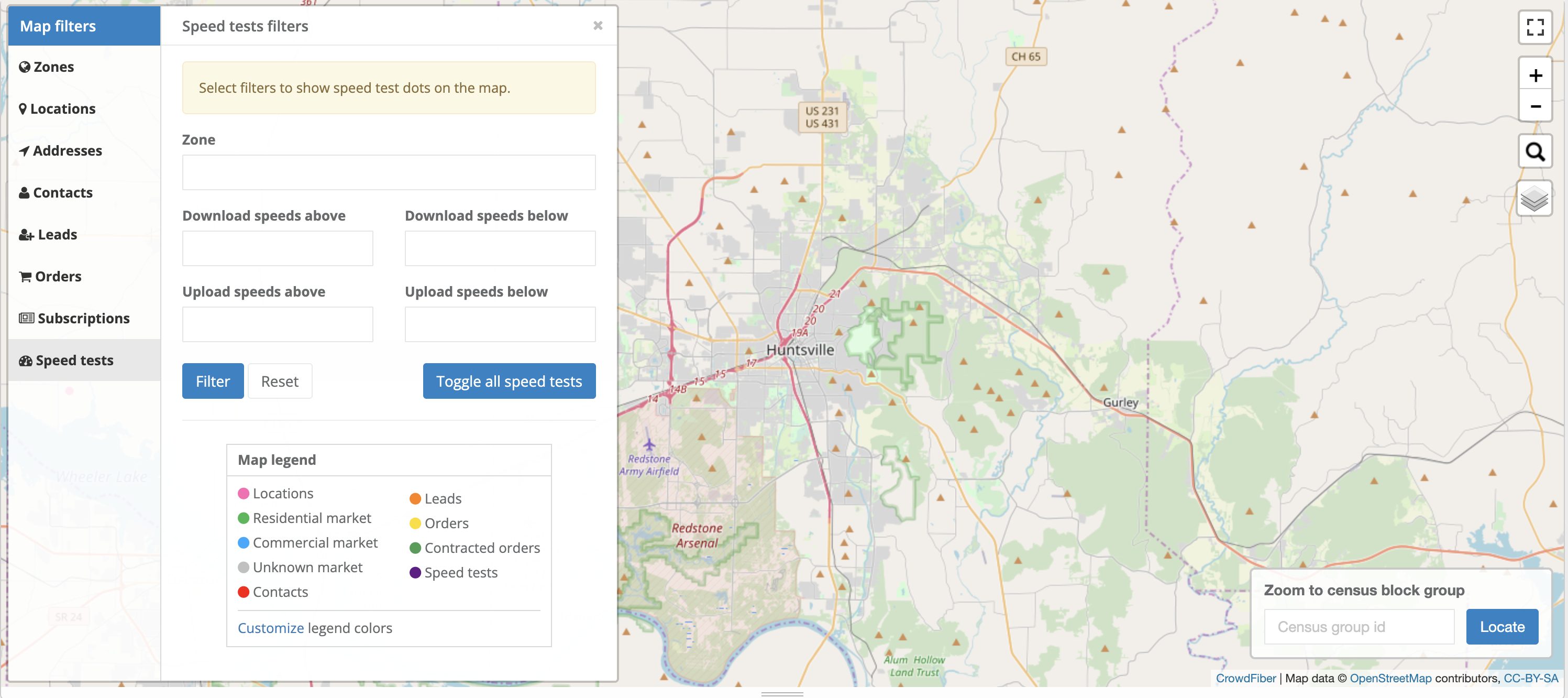
- Zone
- Filters speed tests by the zone(s) they were conducted within.
- Download Speeds Above / Below
- Filters speed tests by a download speed threshold you enter.
- Upload Speeds Above / Below
- Filters speed tests by an upload speed threshold you enter.
Table
The table displayed beneath the map gives you a comprehensive, editable view of the same Zones, Locations, Addresses, Contacts, Leads, Orders, and Subscriptions data shown on the map above - letting you review, organize, and modify records without leaving CrowdControl.
Customizing Columns
Each column header has a menu  with additional configuration options:
- Sort ascending / descending
-
Orders the table by that column's values.
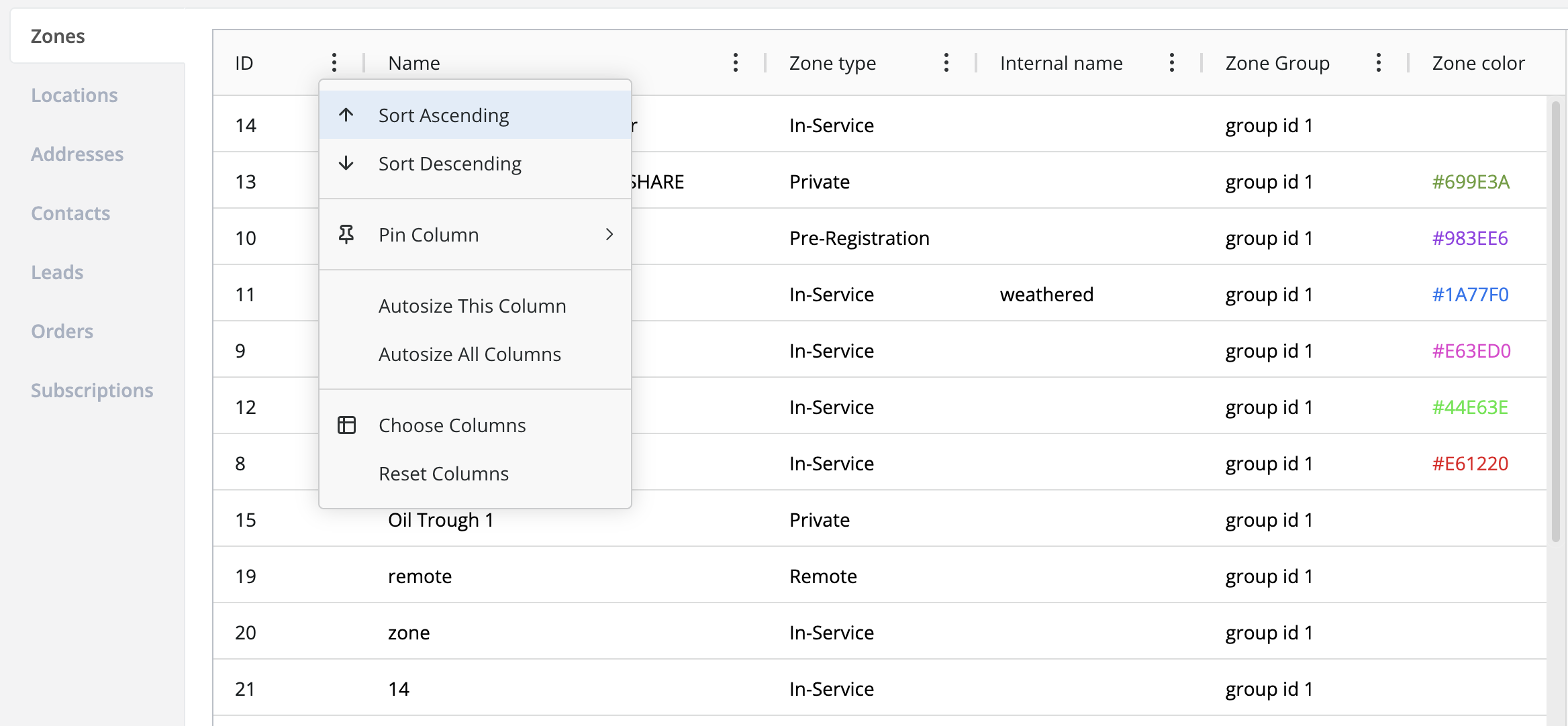
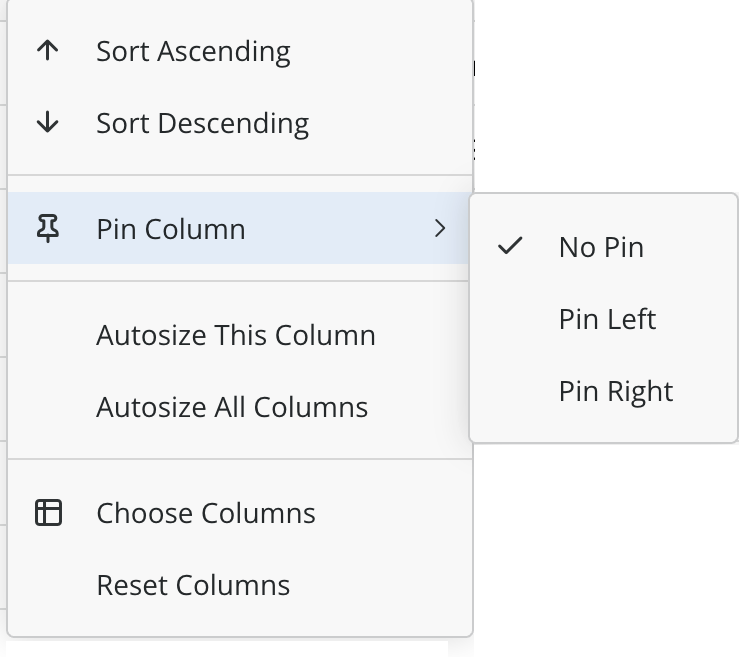
- Pin columns
-
Pins a column to the left or right side of the table so it stays visible while you scroll.
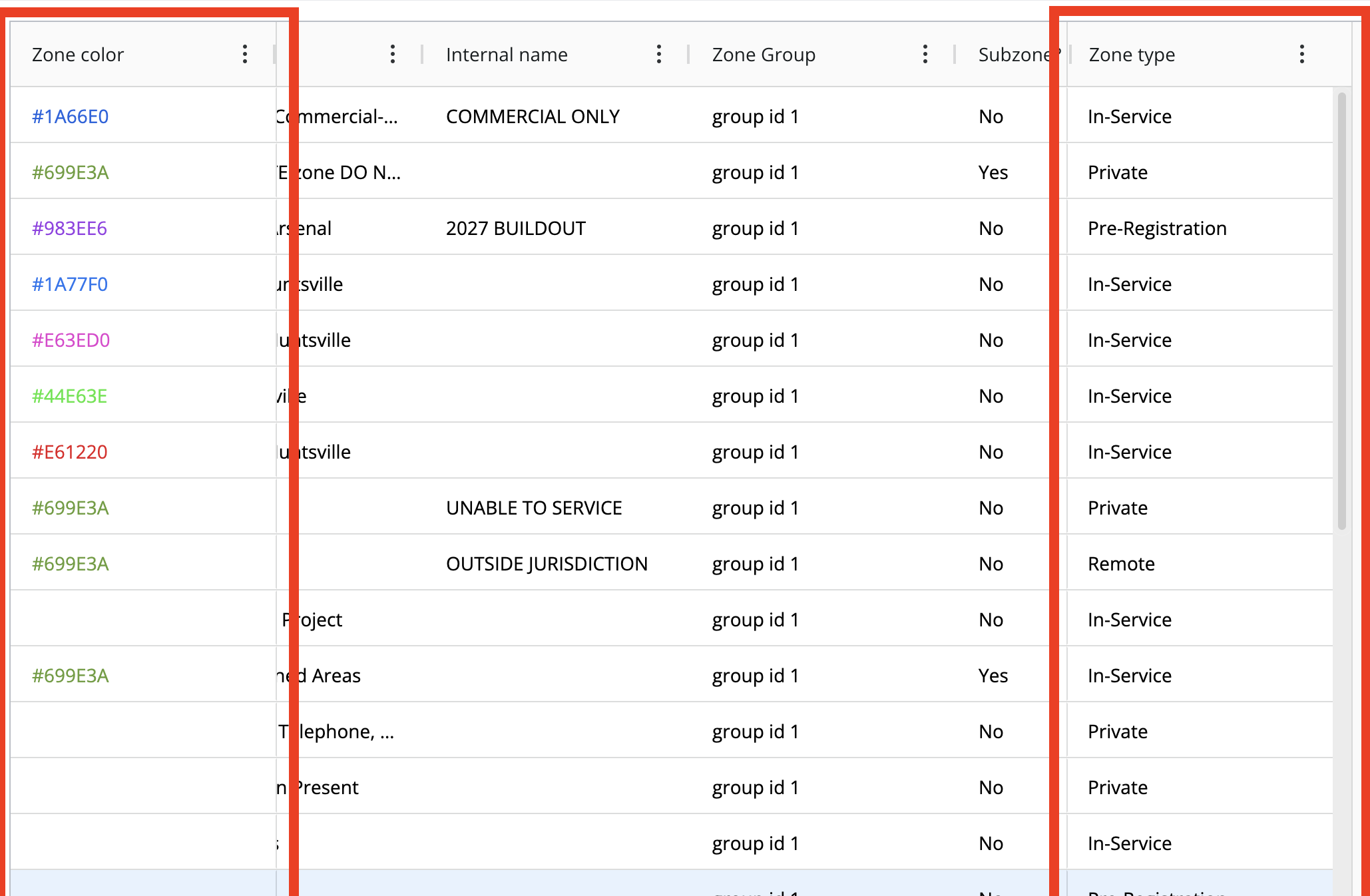
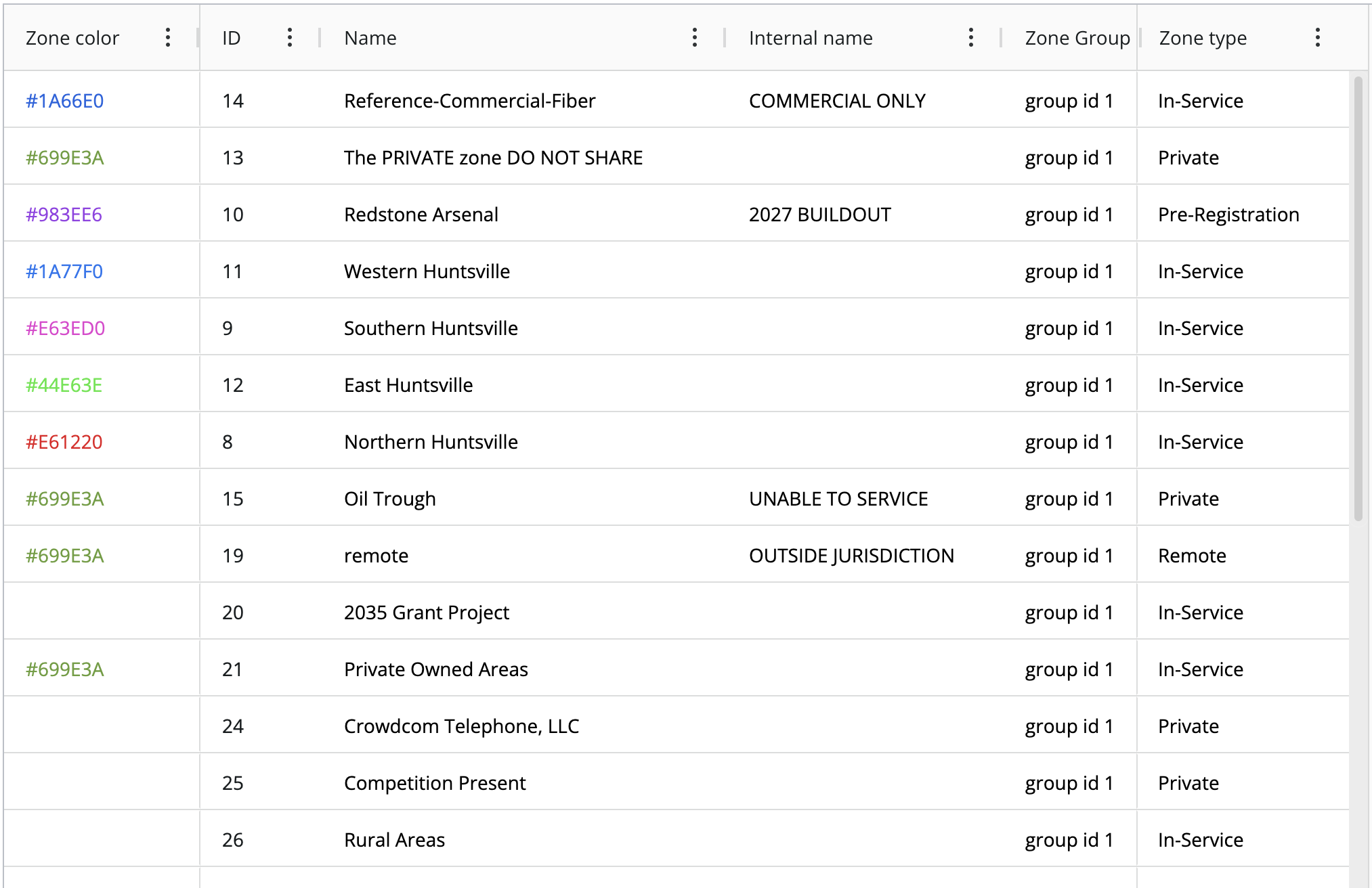
- Auto-size columns
-
Dynamically adjusts column widths to fit their content, reducing horizontal scrolling and manual resizing.
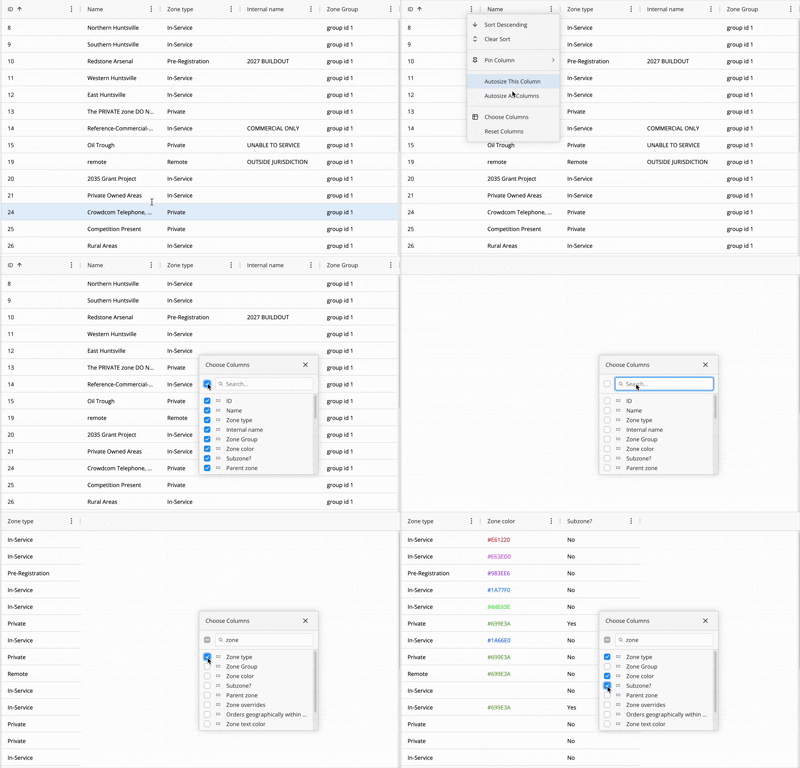
You can also choose which columns are displayed for an index by selecting Choose Columns. This option supports bulk-selecting all or none of the columns, as well as searching for individual columns to enable or disable:
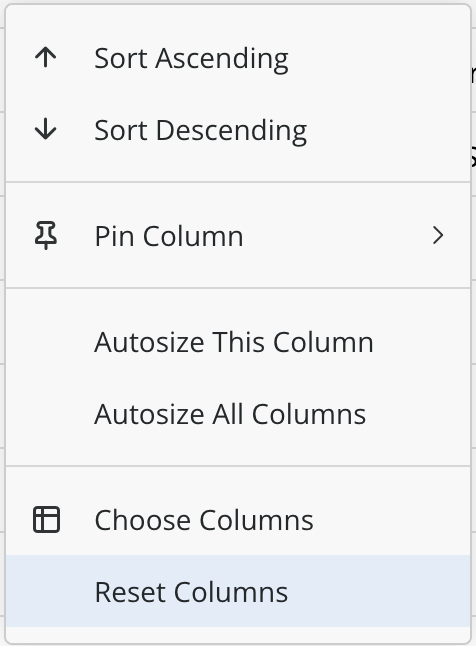
Once your columns are set up the way you like, use Reset Columns to undo all column configuration and return to the default view:
Editing Data
Most columns are click-to-edit, letting you update a record directly from the table - the Address index and any columns containing CrowdFiber-supplied IDs are the exceptions and cannot be edited this way.
Clicking a record's ID in the table will center the map on that record's coordinates. If the map filter for that index isn't applied, the map won't display an indicator for the record you're viewing.
Picking zone colors
The Zone Color column contains a hexadecimal color code. If you don't already have a color wheel handy, htmlcolorcodes.com lets you pick a color and provides the matching hex code to enter into CrowdFiber.